
Invoice and estimate numbering
Document numbers are generated from a small template — a format string with placeholders for the date and a sequential counter — combined with an optional padding length. Each new invoice or estimate takes the next number in its series.
Placeholders
The format is plain text with placeholders in curly brackets:
| Placeholder | Description | Example |
|---|---|---|
{x} or {X} |
Sequential number — incremented for each completed document | 1 |
{d} |
Day of the month, 2 digits with leading zeros | 01 to 31 |
{j} |
Day of the month without leading zeros | 1 to 31 |
{W} |
ISO 8601 week number, weeks starting on Monday | 42 |
{F} |
Full textual month name | January to December |
{M} |
Short textual month name (3 letters) | Jan to Dec |
{m} |
Numeric month, with leading zeros | 01 to 12 |
{n} |
Numeric month, without leading zeros | 1 to 12 |
{Y} |
Four-digit year | 2026 |
{y} |
Two-digit year | 26 |
{Y}-{m}-{x} produces 2026-06-1, 2026-06-2, 2026-06-3. Placeholders can be mixed with literal text — Sliptree-{Y}-{M}-{x} produces Sliptree-2026-Jun-1, Sliptree-2026-Jun-2, and so on.
Padding
Padding pads the sequential counter with leading zeros so document numbers stay a constant width. With padding 4 and a format of {Y}-{m}-{x}, number 5 becomes 2026-06-0005, number 29 becomes 2026-06-0029, and number 9999 becomes 2026-06-9999.
When changes apply
Format changes affect future documents only. Already-issued invoices and estimates keep the number they were assigned. Lowering the next sequence number can cause collisions; Sliptree skips past any already-used number rather than overwriting it.
Where to configure it
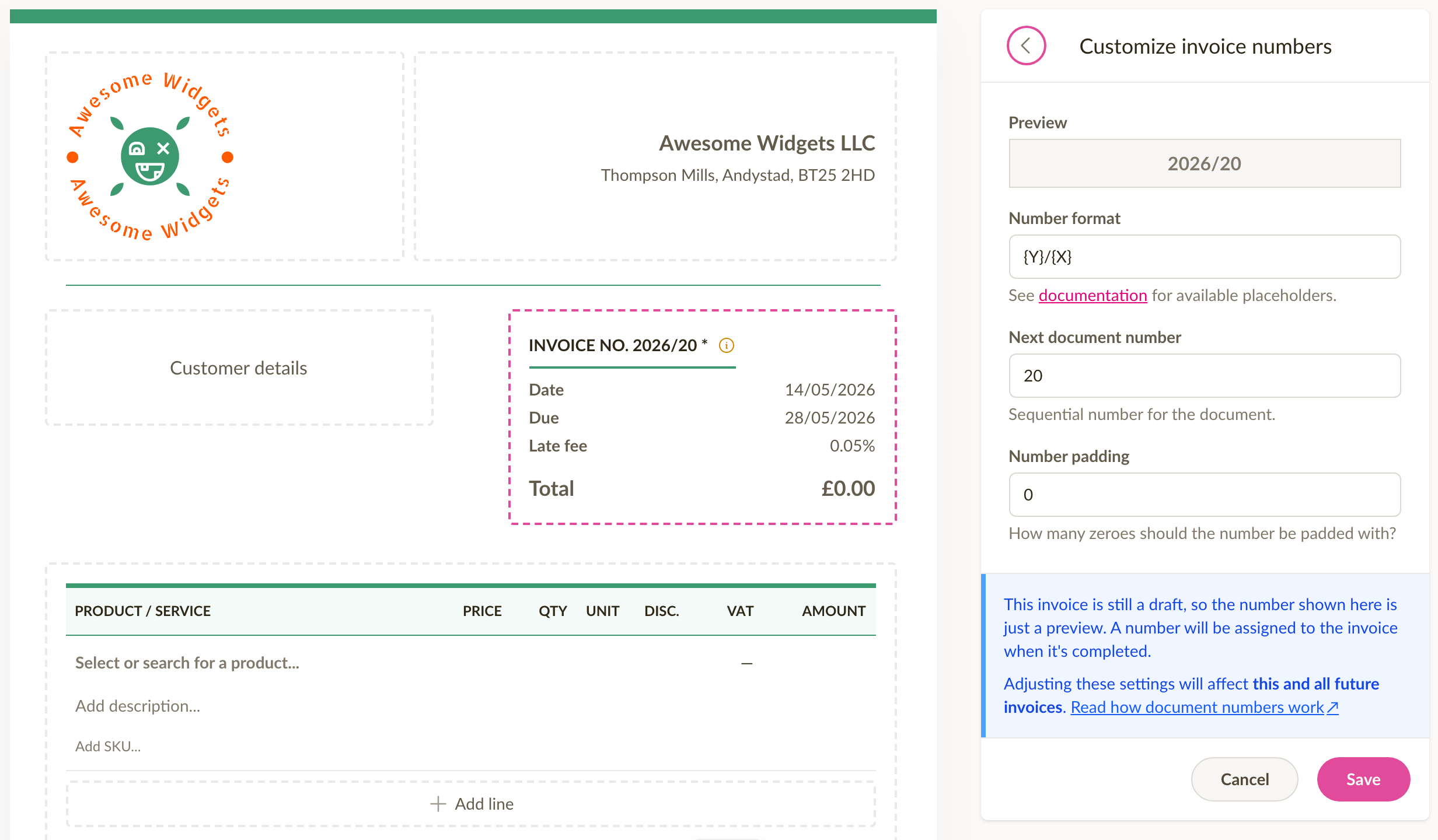
Numbering lives under Business settings → Settings. It can also be edited directly from a document: while editing, click the document number to open the Invoice details (or Estimate details) panel, then click Invoice number (or Estimate number). The Preview field shows exactly how the next number will look as the format is adjusted.
Fixing problems with numbering
"I need to change the number on a document I've already issued"
The number on an issued invoice or estimate cannot be edited from the UI. Numbers are assigned at completion and become read-only. For an estimate that happens as soon as it leaves Draft, and for an invoice after completion, especially once a payment has been recorded.
The practical workarounds:
- Delete and re-issue. Delete the wrong-numbered document and create a new one. The new document picks up the next number in the series. See Can invoices be deleted? for when deletion is allowed.
- Adjust the next number first under Business settings → Settings, then create the replacement so it lands on the number you want.
If the issue is a small numbering glitch on a document already sent to a customer, it is often easiest to leave it as it is and explain in a follow-up email. Most accountants accept a clearly-explained one-off.
"There's a gap in my numbers"
Gaps usually come from one of two things:
- A completed document was deleted. Numbers are not reused, so deleting a completed document leaves its number empty in the sequence.
- The next number was adjusted manually. If you've issued documents up to #100 and set Next number to 120, the next document becomes #120 and #101–#119 stay empty.
Documents are also numbered in completion order, not creation order. If you start invoice A on Monday and complete invoice B before it on Tuesday, B gets the lower number. That isn't a gap, but it sometimes looks like one.
There is no automatic way to renumber existing documents to close gaps. If accounting rules in your country require strict consecutive numbering, talk to your accountant about how to document the gap. A short note in your records is usually enough.
"I changed the next number and now I get a collision error"
If the Next number is set to a value already used on an existing document, completing a new document will fail with The generated document number is already in use. Sliptree won't overwrite an existing number.
The fix: open the numbering panel, set Next number to a value higher than the highest already-issued number, save, then complete the document.
"Can I bulk-renumber all my documents?"
No. There is no bulk-renumber action. Each document keeps the number it was assigned at completion.